Table of Contents
The modern creative studio in 2026 looks drastically different from just a few years ago. You’re juggling high-resolution video files, massive 3D renders, color-critical photography, and perhaps even real-time virtual production workflows—all while bouncing between your desk, client meetings, and remote locations. The laptop has become your mobile workstation, but its slim profile comes with a trade-off: limited ports that can’t handle the bandwidth demands of professional-grade peripherals. This is where Thunderbolt technology transforms from a convenience into an absolute necessity for maintaining creative momentum.
Thunderbolt docks have evolved into the central nervous system of the creative workspace, offering a single-cable solution that expands connectivity, powers your devices, and maintains the blistering data speeds that modern content creation demands. But not all docks are created equal, and the specifications that matter for creative professionals differ significantly from those needed for general office work. This guide will walk you through the critical features, technical considerations, and workflow-specific decisions that will help you identify the perfect docking solution for your unique creative practice—without getting lost in marketing jargon or paying for capabilities you’ll never use.
Top 10 Thunderbolt Docks
Detailed Product Reviews
1. Plugable Thunderbolt 4 Dock with 100W Charging, Thunderbolt Certified, Laptop Docking Station Dual Monitor Single 8K or Dual 4K HDMI for Windows and Mac, 4X USB, Gigabit Ethernet (TBT4-UD5)

Overview: The Plugable Thunderbolt 4 Dock (TBT4-UD5) is a premium 13-port docking station delivering 100W power delivery and 40Gbps Thunderbolt 4 speeds. Officially recognized as Wirecutter’s Best Thunderbolt Dock 2025 and Intel Evo certified, it supports dual 4K 60Hz displays or a single 8K monitor. Designed for professional workflows, it offers comprehensive connectivity for Windows and Mac systems, though macOS compatibility varies significantly across Apple Silicon generations, with base M1/M2 models limited to single display output.
What Makes It Stand Out: This dock’s Wirecutter endorsement and Intel Evo certification signal exceptional reliability. The 13-port array includes dual HDMI, Thunderbolt 4 downstream with 15W charging, multiple USB variants (10Gbps and 5Gbps), SD/microSD slots, Gigabit Ethernet, and an audio jack. The 100W power delivery (96W certified) handles demanding laptops while maintaining full bandwidth for peripherals and dual displays. The certification pedigree ensures compatibility testing exceeds typical manufacturer standards.
Value for Money: Positioned at the premium tier, the price reflects certified performance and robust feature set. While cheaper alternatives exist, the Plugable dock justifies its cost through proven compatibility, long-term reliability testing, and future-proof Thunderbolt 5/USB4 support. For professionals requiring guaranteed performance, it’s a worthwhile investment over budget options that may have bandwidth or compatibility issues. The award-winning status adds confidence for mission-critical deployments.
Strengths and Weaknesses: Pros: Intel Evo certified, Wirecutter 2025 award winner, 100W charging, dual 4K/8K support, comprehensive 13-port design, 40Gbps speeds, downstream TB4 port. Cons: Complex macOS limitations (base M1/M2 support single display only), premium pricing, potential bandwidth contention when fully loaded, requires careful cable selection for optimal performance, no 2.5GbE Ethernet.
Bottom Line: An excellent choice for Windows users and MacBook Pro owners needing reliable, high-performance connectivity. The certification pedigree makes it ideal for professional environments where stability matters. Base MacBook Air users should verify display needs before purchasing, but for most Thunderbolt 4 laptops, this dock delivers unmatched assurance and capability.
2. Anker Prime Docking Station, 14-Port with 160W Max Output, 10Gbps Fast Data Transfer, Real-Time Smart Interface, Audio and Ethernet Ports, Dual 4K Displays for Dell, HP, Lenovo and More

Overview: The Anker Prime Docking Station is a versatile 14-port hub delivering 160W total output with impressive charging capabilities. It supports dual displays up to 2K@60Hz via HDMI and offers 10Gbps data transfer across multiple ports. Designed for power users juggling multiple devices, it features three USB-C ports capable of 100W each, though display support varies significantly between Windows and macOS platforms. Note that macOS users face display mirroring limitations, and the dock lacks Linux compatibility.
What Makes It Stand Out: The standout feature is the 160W total power distribution, allowing simultaneous high-wattage charging of up to four devices. The real-time smart interface provides monitoring capabilities, while the triple USB-C configuration offers flexibility rare in this category. The 14-in-1 design accommodates extensive peripheral connectivity, making it ideal for complex desk setups. This charging-first approach distinguishes it from display-focused competitors.
Value for Money: The Anker Prime offers solid value for users prioritizing charging capacity over raw display bandwidth. While it lacks Thunderbolt 4 certification and caps dual displays at 2K, its 160W output and port variety justify the mid-range price. Users needing true 4K dual displays may find better value elsewhere. The smart interface adds unique value for those monitoring power distribution across multiple devices.
Strengths and Weaknesses: Pros: 160W total power output, triple 100W USB-C ports, 10Gbps data speeds, 14-port versatility, smart interface, broad Windows/ChromeOS compatibility. Cons: Dual display limited to 2K@60Hz (not 4K), macOS mirrors displays (no extended mode), no Linux support, incompatible with 5120x1440 ultrawide monitors, lacks Thunderbolt 4 certification, no downstream TB4 port.
Bottom Line: Best suited for Windows users needing to charge multiple high-power devices simultaneously. The display limitations and macOS mirroring restriction make it less ideal for multi-monitor productivity setups. Choose this dock for power delivery first, with display connectivity as a secondary consideration. It’s a charging powerhouse, not a display specialist.
3. Amazon Basics Thunderbolt 4 Pro Docking Station, Dual 4K Monitor Support, 8K Display, 2xTBT4, 1xHDMI2.1, 3xUSB A 3.1, RJ45 Ethernet, Black, 7.86 x 2.95 x 1.23 inches

Overview: The Amazon Basics Thunderbolt 4 Pro Docking Station offers entry-level Thunderbolt 4 connectivity in a compact, travel-friendly design. Supporting dual 4K@60Hz displays via its Thunderbolt ports and 8K@30Hz through HDMI 2.1, it provides 96W power delivery and a 2.5GbE Ethernet port. The 7.86-inch form factor makes it ideal for mobile professionals seeking desktop-grade expansion without bulk. However, users must follow specific connection sequences to avoid bandwidth limitations.
What Makes It Stand Out: This dock distinguishes itself through affordability and portability while maintaining core Thunderbolt 4 features. The 2.5GbE Ethernet exceeds standard Gigabit offerings, and the dynamic PD profile intelligently manages power distribution. The included black Thunderbolt 4 cable ensures compatibility, addressing a common pitfall with third-party cables. The travel-friendly design slips easily into laptop bags, a rarity for full-featured docks.
Value for Money: As a budget-conscious Thunderbolt 4 solution, it delivers exceptional value. The feature set rivals pricier competitors, though caveats exist. Users comfortable with manual configuration and bandwidth management will appreciate the savings. However, the potential for thermal throttling and overload protection triggering may frustrate those seeking plug-and-play simplicity. It’s a value proposition for the technically adept.
Strengths and Weaknesses: Pros: Affordable pricing, compact travel design, 96W charging, 2.5GbE Ethernet, includes certified cable, dual 4K/8K support. Cons: Complex setup requirements, may overheat under load (122°F), bandwidth sharing reduces performance, overload protection can cause disconnections, HDMI port has usage restrictions, no downstream Thunderbolt ports, only three USB-A ports.
Bottom Line: A competent budget option for technically-inclined users who prioritize portability. The thermal and bandwidth limitations require realistic expectations. For travel setups with occasional dual-display needs, it’s a cost-effective choice, but professionals should consider premium alternatives for mission-critical reliability. Read the manual carefully before use.
4. UGREEN Thunderbolt 4 Dock 8-in-1 40Gbps TB4 Hub 3 x TB 4 Dual 4K@60Hz or Single 8K Display, 85W Charging, Gigabit Ethernet, 3 x USB A 3.2. Revodok Max 208 for Mac M1/M2/M3/M4 Pro/Max

Overview: The UGREEN Thunderbolt 4 Dock is an 8-in-1 hub featuring three downstream Thunderbolt 4 ports, making it ideal for daisy-chaining multiple high-speed devices. With 85W charging capability and a bundled 140W GaN charger, it supports dual 4K@60Hz or single 8K@30Hz displays. The compact design targets MacBook Pro/Max users and Windows laptops requiring robust Thunderbolt expansion without excessive port bloat. Note that base M-chip MacBooks are limited to single display output.
What Makes It Stand Out: The triple downstream Thunderbolt 4 ports are a rarity in this category, enabling complex device chains and multiple high-bandwidth peripherals simultaneously. The included 140W GaN charger adds significant value, ensuring adequate power for both the dock and connected laptop. The focused 8-port design prioritizes quality over quantity, with all USB-A ports delivering 10Gbps speeds. This specialization appeals to Thunderbolt power users.
Value for Money: The UGREEN dock offers strong value for Thunderbolt power users. While the 85W charging lags behind 100W competitors, the included high-wattage charger and triple TB4 ports justify the price. For users needing multiple Thunderbolt device connections, this specialized feature set outweighs the slightly lower power delivery. The GaN charger alone represents substantial added value.
Strengths and Weaknesses: Pros: Three downstream Thunderbolt 4 ports, included 140W GaN charger, 10Gbps USB-A ports, compact design, dual 4K/8K support for supported systems. Cons: Only 85W laptop charging, limited to 8 ports, base M-chip Macs restricted to single display, requires external power brick (though included), no SD card reader, no 2.5GbE Ethernet.
Bottom Line: Perfect for users prioritizing Thunderbolt device expansion over maximum charging wattage. The triple downstream ports make it unique for daisy-chaining NVMe drives or additional monitors. MacBook Pro/Max owners benefit most, while base MacBook Air users should verify single-display limitations meet their needs. It’s a specialized tool for Thunderbolt-heavy workflows.
5. OWC Thunderbolt Go Dock, 11 Ports, Built in Power Supply, 90W Charging, TB4 (USB-C), USB, HDMI, 2.5GbE, SD, Also Compatible with USB-C Devices, Supports Thunderbolt Share

Overview: The OWC Thunderbolt Go Dock is an 11-port docking station featuring a built-in power supply, eliminating the external brick common to competitors. With 90W charging, 2.5GbE Ethernet, and Thunderbolt Share support, it offers versatile connectivity including SD 4.0 UHS-II card reader. The integrated design supports up to two 4K@60Hz displays or one 8K@60Hz, targeting professionals seeking clean desk aesthetics. The included Thunderbolt Share license enables direct PC-to-PC connectivity.
What Makes It Stand Out: The integrated 100-240V power supply is the headline feature, reducing cable clutter and travel weight significantly. Included Thunderbolt Share license enables PC-to-PC connectivity, a forward-looking feature for collaborative workflows. The comprehensive port selection includes Thunderbolt 4, USB 3.2 Gen 2 Type-C/A, HDMI, 2.5GbE, and professional-grade SD card reader, making it a true all-in-one solution without external power adapters.
Value for Money: The premium price reflects the engineering required for integrated power and Thunderbolt Share licensing. For users valuing desk minimalism, the cost is justified by eliminating power brick hassles. Compared to brick-based docks with similar features, the price premium is reasonable for the convenience and cleaner setup. The SD 4.0 reader adds professional value for photographers and videographers.
Strengths and Weaknesses: Pros: Built-in power supply, Thunderbolt Share support, 2.5GbE Ethernet, SD 4.0 UHS-II card reader, 11-port versatility, 8K display support, no external brick. Cons: Only 90W charging (lower than some competitors), fewer ports than 14-16 port alternatives, premium pricing, display support varies by host system, runs warm due to integrated PSU, no downstream Thunderbolt 4 port for daisy-chaining.
Bottom Line: Ideal for professionals prioritizing clean aesthetics and travel convenience. The integrated power supply and Thunderbolt Share make it unique in the market. While charging wattage is modest, the overall feature set suits most MacBook Pro and Windows laptop users. Choose this for minimalism and desk cleanliness over maximum port count or charging power. It’s a lifestyle and productivity hybrid dock.
6. Anker Laptop Docking Station Dual Monitor, 8-in-1 USB C Hub, 4K Dual Monitor with 2 HDMI, 1 Gbps Ethernet Hub, 85W Power Delivery, SD Card Reader, for XPS and More (Charger not Included)

Overview: The Anker 8-in-1 USB-C hub transforms a single laptop port into a comprehensive workstation. Supporting dual 4K displays at 30Hz or a single 4K display at 60Hz, it delivers 85W power delivery, Gigabit Ethernet, SD card readers, and multiple USB ports. Designed for XPS and similar USB-C laptops, it excludes the charger but supports Windows 10/11 and ChromeOS. Note that macOS users face display mirroring limitations, and Linux compatibility is absent.
What Makes It Stand Out: Anker’s 50-million-user brand credibility combines with genuine dual-monitor support in a compact form factor. The 85W power delivery handles most ultrabooks and productivity laptops, while the integrated SD card reader appeals to photographers and content creators. Its USB-C PD input ensures you won’t sacrifice your charging port, maintaining mobility when disconnected.
Value for Money: Positioned in the mid-range segment, this dock offers excellent value for Windows users needing dual displays without Thunderbolt premiums. The omission of a charger keeps costs down but requires an additional purchase. Compared to Thunderbolt alternatives costing $200+, this USB-C hub delivers core functionality at roughly half the price, making it pragmatic for budget-conscious professionals.
Strengths and Weaknesses: Strengths include robust build quality, comprehensive port selection, strong brand support, and compact design. Weaknesses involve macOS display mirroring restrictions, lack of Linux support, reduced 30Hz output in dual-monitor mode, and the absent power adapter.
Bottom Line: Ideal for Windows-based remote workers and students seeking affordable dual-monitor expansion. Mac users should consider alternatives, and everyone must factor in a separate 100W charger purchase.
7. OWC Thunderbolt Hub Docking Station, Grey/Black, Thunderbolt 4, USB-A

Overview: The OWC Thunderbolt Hub Docking Station represents a performance-first approach to connectivity. Built on Thunderbolt 4 technology, it promises universal compatibility across Thunderbolt 4, Thunderbolt 3, USB4, and USB-C devices for both Mac and Windows. The Thunderbolt Certified designation ensures reliable operation, though the feature list lacks specific port configurations.
What Makes It Stand Out: OWC’s reputation for Mac-focused peripherals shines through with guaranteed 100% compatibility across millions of devices. The Thunderbolt 4 backbone delivers 40Gbps bandwidth, eliminating the bottlenecks common in USB-C hubs. This hub leverages full device performance rather than throttling connections through limited bus architectures, making it ideal for high-speed storage and professional workflows.
Value for Money: As a premium Thunderbolt 4 solution, this dock commands a higher price point than USB-C alternatives. However, the investment pays dividends for creative professionals and power users who demand maximum throughput. Comparable Thunderbolt 4 docks typically range from $250-$350; OWC justifies its pricing through certified performance and cross-platform reliability.
Strengths and Weaknesses: Strengths include Thunderbolt 4 speeds, universal compatibility, OWC reliability, and future-proof connectivity. Weaknesses involve the vague feature description (port count and types unclear), likely premium pricing, and potential overkill for casual users.
Bottom Line: A top-tier choice for professionals needing guaranteed Thunderbolt 4 performance across multiple device ecosystems. Verify specific port configurations before purchasing to ensure it meets your connectivity needs.
8. Belkin Thunderbolt 3 Dock Pro w/ Thunderbolt 3 Cable - USB-C Hub - USB-C Docking Station for MacOS & Windows, Dual 4K @60Hz, 40Gbps Transfer Speed, 85W Upstream Charging, w/ Ethernet, SD & Audio Ports

Overview: The Belkin Thunderbolt 3 Dock Pro delivers a comprehensive 12-port expansion solution through a single Thunderbolt 3 cable. Supporting dual 4K displays at 60Hz with 40Gbps transfer speeds, it provides 85W upstream charging and includes a 170W power supply unit. The package ships with a 2.6-foot Thunderbolt cable, offering immediate deployment for Mac and Windows users seeking a unified workspace.
What Makes It Stand Out: The complete out-of-box experience distinguishes this dock—most competitors omit the PSU or cable. Dual 4K@60Hz support remains rare in the Thunderbolt 3 category, enabling smooth multi-monitor productivity. The 85W charging capacity handles most 15-inch laptops, while the extensive port array eliminates adapter clutter.
Value for Money: Priced competitively for a premium Thunderbolt 3 dock, the included 170W PSU and Thunderbolt cable add $50+ value compared to barebones alternatives. While Thunderbolt 4 docks offer marginal improvements, this Pro model delivers 90% of real-world performance at a more accessible price point, making it sensible for non-Thunderbolt 4 systems.
Strengths and Weaknesses: Strengths include bundled PSU and cable, true dual 4K@60Hz support, robust power delivery, and broad compatibility. Weaknesses involve Thunderbolt 3 (not 4) limitations, bulky desktop footprint, and potential overkill for single-monitor users.
Bottom Line: An excellent turnkey solution for professionals wanting premium Thunderbolt 3 connectivity without separate accessory purchases. Ideal for pre-2021 MacBooks and Windows laptops lacking Thunderbolt 4.
9. Plugable Thunderbolt 4 Dock for M4 MacBook Air & M5 Pro: 100W Charging Driverless Laptop Docking Station with 4K HDMI Dual Monitor or Single 6K, 6X USB, SD, Ethernet, Thunderbolt Certified (TBT-UDM)

Overview: The Plugable Thunderbolt 4 Dock targets Apple Silicon Mac users with a driverless 13-in-1 design. Delivering dual 4K 60Hz HDMI displays on M4/M5 Pro/Max systems and M3 Macs in clamshell mode, it provides 100W charging and 40Gbps throughput. The space-gray aluminum enclosure complements modern MacBooks while offering comprehensive connectivity without software installation.
What Makes It Stand Out: The explicit Mac compatibility matrix sets this dock apart—clearly detailing support for M4/M5, Pro/Max variants, and specific M3 configurations. Lifetime North American support provides enterprise-grade peace of mind for home users. Driverless operation means instant functionality across supported systems, eliminating IT headaches.
Value for Money: Thunderbolt 4 docks typically command $250-$300; Plugable’s offering sits competitively while adding lifetime support. The aluminum build and tailored Mac compatibility justify the premium over generic USB-C hubs. For users with compatible Macs, the price reflects genuine value through guaranteed performance and long-term support.
Strengths and Weaknesses: Strengths include Thunderbolt 4 bandwidth, driverless operation, lifetime support, detailed compatibility guidance, and robust aluminum construction. Weaknesses involve base M1/M2 MacBooks supporting only single displays, M3 base models requiring clamshell mode for dual displays, and limited appeal for non-Mac users.
Bottom Line: The definitive choice for M4/M5 MacBook Pro/Max owners seeking hassle-free dual-monitor expansion. Verify your specific Mac model’s display capabilities before purchasing.
10. Dell Pro Thunderbolt 4 Smart Dock SD25TB4 – USB-C Station 130W, 4 Displays 4K, 2X DP 1.4, HDMI 2.1, 2X Thunderbolt 4, 2.5GbE, Wi-Fi, Sustainable Design
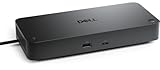
Overview: The Dell Pro Thunderbolt 4 Smart Dock SD25TB4 serves enterprise environments with unmatched display support and management capabilities. Driving up to four 4K monitors via HDMI 2.1, DP 1.4, and Thunderbolt 4 ports, it delivers 130W charging for Dell laptops (96W for others). Remote Wi-Fi management via Dell Console and Intel AMT enables IT administration without host PC connectivity, while business-grade security features protect sensitive data.
What Makes It Stand Out: Enterprise management integration distinguishes this dock—WPA3 encryption, PXE boot, MAC filtering, and DMA protection address corporate security mandates. The quad-display capability exceeds typical dual-monitor setups, supporting creative, data analysis, and AI development workflows. Sustainable design aligns with corporate ESG initiatives.
Value for Money: Positioned as a premium enterprise solution, the price reflects business-class features unavailable in consumer docks. While overkill for home users, organizations requiring remote management and robust security will find the investment justified compared to deploying multiple smaller docks.
Strengths and Weaknesses: Strengths include four 4K display support, high-wattage charging, comprehensive remote management, enterprise security, and sustainable construction. Weaknesses involve premium pricing, complexity for casual users, and reduced charging wattage for non-Dell devices.
Bottom Line: Best suited for IT-managed deployments where security, remote administration, and maximum display density are priorities. Power users with intensive multi-monitor needs will also appreciate its capabilities.
Understanding Thunderbolt Technology for Creative Workflows
The Thunderbolt ecosystem has matured significantly, and understanding its capabilities is fundamental to making an informed purchase. For creative professionals, this isn’t just about faster file transfers—it’s about enabling entirely new ways of working.
The Bandwidth Revolution in 2026
Thunderbolt 5 has established itself as the new standard, delivering 80 Gbps of bidirectional bandwidth that fundamentally changes what’s possible through a single cable. This means you can simultaneously run multiple 6K displays, transfer terabytes of raw footage, and power your laptop without any performance bottlenecks. For video editors working with 8K RAW footage or 3D artists manipulating complex scenes, this bandwidth eliminates the need for direct-attached storage arrays that previously required separate connections.
The real-world impact extends beyond spec sheets. You can now preview color-graded 6K footage on a reference monitor while simultaneously rendering to a high-speed NVMe drive and backing up to a secondary archive—all through one connection to your laptop. This level of integration transforms your portable machine into a true desktop replacement without compromise.
Backward Compatibility Realities
While Thunderbolt 5 docks offer cutting-edge performance, most creative studios operate hybrid ecosystems. Your primary workstation might be a Thunderbolt 5-enabled laptop, but you may still need to connect legacy Thunderbolt 3 devices, USB-C peripherals, or even older USB-A accessories. Modern docks handle this gracefully, but the implementation varies significantly.
The key consideration is how the dock manages mixed-device traffic. Premium models feature intelligent bandwidth allocation that prevents a slower USB 2.0 device from throttling your high-speed NVMe storage. This becomes critical when you’re running a colorimeter, MIDI controller, and external SSD simultaneously. Understanding these traffic management capabilities ensures your dock won’t become a bottleneck when mixing old and new technology.
Essential Port Configuration Strategies
The port selection on your dock directly impacts your daily workflow efficiency. Creative professionals need to think beyond simple port counts and consider the specific types of connections that align with their discipline.
Video Outputs: More Than Just HDMI
For motion graphics artists and video editors, the type and number of video outputs determines your monitoring capabilities. Dual DisplayPort 2.1 ports offer the flexibility to run two 6K displays at high refresh rates or a single 8K display for critical color work. Some docks include HDMI 2.1 ports, which are essential for connecting to client displays or broadcast monitors that may not support DisplayPort.
The nuanced consideration here involves DSC (Display Stream Compression) support. While visually lossless, DSC implementation varies between docks and can affect compatibility with certain professional reference monitors. For color-critical work, ensure the dock supports full-bandwidth output without compression for your primary display, even if secondary displays use DSC.
USB-C vs USB-A: Balancing Legacy and Future
You’ll inevitably need both connector types, but the ratio matters. Photographers with older tethering cables may require multiple USB-A ports, while digital techs using the latest cameras need USB-C ports with Power Delivery. The strategic approach involves mapping your current peripheral ecosystem and anticipating upgrades over the next 2-3 years.
Premium docks now include USB-C ports with dedicated bandwidth rather than shared hubs. This means your 20Gbps external SSD won’t compete with your tablet’s 480Mbps connection. For 3D artists transferring gigabyte-sized texture libraries while sculpting on a graphics tablet, this dedicated lane architecture prevents cursor lag and transfer slowdowns.
Audio Connectivity for Multimedia Creators
Music producers and video editors often overlook audio I/O until it’s too late. A dock with optical audio output enables direct connection to professional DACs without additional adapters. For podcasters and voice-over artists, a dock with integrated high-resolution audio input eliminates the need for a separate audio interface for monitoring or quick recording sessions.
The often-missed specification is galvanic isolation on audio circuits. This prevents ground loop hum when connecting multiple powered devices—a common issue in studios with powered monitors, external drives, and the laptop itself all drawing from different power sources.
Power Delivery and Thermal Management
Your dock needs to do more than connect devices—it must reliably power your entire setup. Power delivery specifications directly impact which laptops can operate at full performance while docked.
Wattage Requirements for Performance Laptops
Creative workstations like mobile workstations with discrete GPUs require substantial power to maintain peak performance. A dock offering 140W power delivery ensures even the most demanding laptops can run CPU and GPU-intensive renders without throttling. However, wattage alone doesn’t tell the full story.
The critical factor is sustained power delivery versus peak ratings. Some docks can deliver 140W for brief periods but throttle down under continuous load. For 3D rendering sessions that tax the system for hours, you need a dock rated for continuous high-wattage delivery. Check specifications for “continuous power delivery” rather than just maximum ratings.
Daisy-Chaining Without Compromise
One of Thunderbolt’s most powerful features is device daisy-chaining, but creative workflows reveal its limitations. Connecting a high-speed RAID array downstream from your dock might seem convenient, but it shares bandwidth with all other dock functions.
The professional approach is to use the dock as a central hub rather than a pass-through device. Connect critical high-bandwidth devices directly to the dock’s ports rather than daisy-chaining them. Reserve daisy-chaining for low-bandwidth peripherals like secondary monitors or legacy devices. This architecture prevents a single device from monopolizing the entire Thunderbolt connection.
Thermal Design and Longevity
Docks generate significant heat when powering laptops and multiple high-speed devices. Passive cooling works for basic models, but professional docks with multiple NVMe slots and high-wattage power delivery require active cooling. The design quality of this cooling system affects both performance and longevity.
Look for docks with thermal management that keeps internal temperatures below 60°C under load. Excessive heat degrades component life and can cause thermal throttling during intensive tasks. Vertical orientation docks often dissipate heat more effectively than horizontal designs, but this depends on your desk layout preferences.
Storage Expansion and Data Management
For creative professionals, storage isn’t just about capacity—it’s about workflow speed and data integrity. Modern docks have evolved into sophisticated storage hubs.
Integrated NVMe Slots for Scratch Disks
Some premium docks now include dedicated M.2 slots for installing NVMe drives directly into the dock itself. This creates a portable scratch disk that stays with your dock rather than your laptop. For video editors working in multiple locations, this means your render cache and preview files remain consistent across different workstations.
The performance consideration here involves PCIe lane allocation. A dock that provides four PCIe lanes to its internal slot delivers full NVMe speeds, while those with only two lanes cut performance in half. For 8K video editing, this difference translates to stuttering playback versus smooth real-time editing.
SD and CFexpress Card Readers
Photographers and videographers know the pain of carrying separate card readers. Docks with integrated UHS-III SD card slots and CFexpress Type B readers streamline ingestion workflows. The key specification is sustained write speed, not just peak read speeds.
For DITs on set, a dock that can simultaneously ingest from multiple cards while writing to redundant drives is invaluable. Check that the card reader has dedicated bandwidth rather than sharing a USB hub with other ports. This prevents the all-too-common scenario where your fast CFexpress card ingests at USB 2.0 speeds because another device is active.
Network Connectivity for Collaborative Work
10GbE Ethernet ports in high-end docks eliminate network bottlenecks when working directly from shared storage on a NAS. For colorists collaborating with remote editors, this means real-time playback from centralized storage without proxy workflows. Even if your current network is only 1GbE, investing in a 10GbE-capable dock future-proofs your setup for studio upgrades.
Multi-Monitor Setups for Expanded Creativity
Creative professionals often require multiple displays with different characteristics—a color-accurate reference monitor, a high-refresh UI monitor, and perhaps a client preview display.
Resolution and Refresh Rate Combinations
A common configuration is a 6K color-accurate display for grading alongside a 4K high-refresh monitor for timeline scrubbing and UI work. Your dock must support these simultaneously at native resolutions and refresh rates. Thunderbolt 5 handles this effortlessly, but dock implementation varies.
The hidden specification is DSC implementation across multiple streams. Some docks apply compression only when necessary, while others compress all outputs when multiple displays are connected. For color-critical work, ensure the dock can run your primary display uncompressed even with secondary monitors active.
Color Management and Calibration
When connecting multiple displays through a dock, each output’s color profile must be independently manageable. Some docks with integrated graphics chips can interfere with OS-level color calibration. The ideal dock passes DisplayPort signals directly from your laptop’s GPU without processing.
For HDR workflows, verify the dock supports HDR metadata pass-through on all video outputs. This is particularly important for video editors grading HDR content, as some docks strip HDR data, forcing you to connect the reference monitor directly to the laptop and defeating the single-cable convenience.
Build Quality and Ergonomic Design
Your dock will likely sit prominently on your desk for years, so its physical design affects both aesthetics and functionality.
Form Factor and Desk Integration
Vertical docks minimize desk footprint but can be less stable with multiple heavy cables. Horizontal designs offer better stability and often include non-slip bases, but consume more desk real estate. Consider your cable management strategy—some docks include integrated cable routing channels that keep connections organized.
The placement of ports matters more than you might think. Front-facing ports are convenient for temporary connections like card readers or client USB drives. Rear ports keep permanent connections tidy. Docks with side-mounted power buttons prevent accidental shutdowns when adjusting cables.
Material Durability for Mobile Workflows
If your dock travels with you between studio and location, aluminum construction offers better protection than plastic. However, weight becomes a consideration. Some manufacturers use magnesium alloys that provide strength without excessive weight—ideal for DITs and on-set editors.
The finish quality affects longevity. Anodized aluminum resists scratches and wear better than painted surfaces. Rubberized feet prevent sliding on glass desks but can attract dust. Consider your typical working environment when evaluating build materials.
Compatibility and Ecosystem Integration
A dock’s value depends entirely on how well it integrates with your existing hardware and software ecosystem.
macOS vs Windows Implementation Differences
While Thunderbolt is a universal standard, operating system-level implementation creates subtle differences. macOS handles display scaling and arrangement more seamlessly with certain dock chipsets, while Windows offers more granular control over individual port power management.
The critical test is sleep/wake behavior. Some docks cause connected displays to wake slowly or appear in the wrong arrangement after sleep. For professionals who dock and undock multiple times daily, these friction points accumulate into significant productivity losses. Look for docks that advertise “instant wake” or “display persistence” features.
ARM vs x86 Architecture Considerations
With ARM-based workstations gaining traction, dock compatibility extends beyond the OS. ARM architectures handle I/O differently, and some older docks cause issues with ARM systems. Newer docks designed for 2026’s hybrid architecture landscape include firmware that adapts to the host system’s architecture.
This is particularly relevant for video editors using ARM-based laptops for portability but connecting to x86 desktops in the studio. A dock that seamlessly transitions between both architectures without driver conflicts saves hours of troubleshooting.
Peripheral Ecosystem Matching
Your existing devices dictate port priorities. A photographer invested in USB-C tethering cables needs different dock features than a music producer with multiple USB-MIDI devices. Map your current device ecosystem, noting connector types, power requirements, and bandwidth needs.
Consider emerging standards you might adopt soon. If you’re planning to upgrade to a camera with CFexpress Type C cards next year, ensure your dock has expandable card reader options or spare high-speed ports for an external reader.
Budget Considerations and Value Assessment
Thunderbolt docks range from budget-friendly to premium prices, but the cost-to-value ratio depends entirely on your workflow requirements.
Entry-Level vs Professional Tiers
Budget docks typically offer basic port expansion with minimal power delivery—suitable for photographers who primarily need card readers and a few USB ports. Professional models include features like hardware RAID controllers, 10GbE networking, and 140W sustained power delivery.
The middle tier often provides the best value for solo creatives. These docks include dual 6K display support, adequate power delivery for most laptops, and robust port selection without enterprise features like KVM switches or network manageability that drive up costs.
Total Cost of Ownership Analysis
A $400 dock that lasts five years and eliminates the need for three separate adapters ($50 each) plus a card reader ($100) represents genuine value. Factor in the cost of your time troubleshooting compatibility issues with cheaper docks. A premium dock that just works saves hours of frustration.
Consider warranty and support quality. Docks with three-year warranties and US-based support typically cost more but provide peace of mind. For professionals whose income depends on system reliability, this insurance is often worth the premium.
When to Invest in Premium Features
If you’re a solo videographer, enterprise features like Wake-on-LAN or MAC address passthrough offer little value. However, if you work in a collaborative studio with IT-managed infrastructure, these features become requirements. Similarly, integrated hardware encryption benefits creatives handling sensitive client data, but offers no advantage for personal projects.
Future-Proofing Your Investment
Technology evolves rapidly, and a dock should support your workflow for at least 3-5 years.
Modular vs Fixed Architecture
Some premium docks feature modular port bays that allow you to swap connectivity modules as standards evolve. This might include upgrading from 10GbE to future 40GbE modules or adding new video output standards. While more expensive initially, this adaptability protects your investment.
Fixed-architecture docks are more reliable and cost-effective but become obsolete as standards change. For most creatives, a well-spec’d fixed dock with Thunderbolt 5 and comprehensive port selection will remain relevant longer than the laptop it connects to.
Firmware Update Support
A dock’s longevity depends on manufacturer support. Look for brands with a track record of providing firmware updates that add compatibility for new operating systems and fix bugs. Some manufacturers offer beta firmware programs for early adopters of new hardware.
The ability to update firmware without Windows (via macOS or even Linux) indicates better cross-platform support. This flexibility matters for creatives who might switch platforms during the dock’s lifespan.
Emerging Standards Integration
While Thunderbolt 5 is current, USB4 v2 and other standards are already in development. Docks designed with upgradeable firmware and flexible controller chips can potentially support these standards through updates. This future-proofing is worth a modest premium if you typically upgrade devices frequently.
Setup and Optimization Best Practices
Even the best dock requires thoughtful setup to deliver optimal performance.
Optimal Connection Sequencing
Connect your dock to the laptop before powering on either device. This ensures proper power negotiation and device enumeration. For Windows systems, install any provided drivers before first connection, even if the dock appears to work with default drivers. These drivers often enable advanced power management and display features.
Cable quality matters immensely. Use the included Thunderbolt cable or purchase certified 80Gbps cables for Thunderbolt 5 connections. Inferior cables can cause intermittent disconnections that corrupt large file transfers or interrupt rendering sessions.
Firmware and Driver Management
Schedule monthly checks for dock firmware updates. Manufacturers often release updates that improve compatibility with new laptop models or fix subtle performance issues. Set calendar reminders, as these updates rarely install automatically.
Create a system restore point (Windows) or backup (macOS) before applying firmware updates. While rare, failed firmware updates can brick the dock, and having a recovery plan saves hours of troubleshooting.
Troubleshooting Workflow Interruptions
If you experience display flickering, first check the cable connection and try a different Thunderbolt port on your laptop. Some laptops have performance differences between ports. For USB devices dropping connection, verify the dock’s power adapter is firmly seated—these bricks can loosen over time.
When drives disconnect during heavy transfers, check the dock’s temperature. Overheating causes thermal throttling that can disconnect devices. Ensure adequate ventilation around the dock and consider a small cooling pad for intensive sessions.
Frequently Asked Questions
What wattage power delivery do I need for a creative workstation laptop?
Most creative workstations require 100-140W for full performance. Check your laptop’s specifications for “maximum power input” rather than just the charger wattage. Some laptops accept higher wattage than their included charger provides. For sustained rendering tasks, opt for a dock with 140W continuous delivery to prevent throttling.
Can a Thunderbolt dock really support two 6K displays and fast storage simultaneously?
Yes, Thunderbolt 5’s 80Gbps bandwidth handles dual 6K displays (approximately 50Gbps) while leaving 30Gbps for storage and other peripherals. However, dock implementation varies. Ensure the dock specifies “dual uncompressed 6K60” support rather than just dual display capability. Shared bandwidth designs may throttle storage speeds when both displays are active.
Will using a dock increase my laptop’s temperature?
Potentially, yes. The dock itself generates heat, and charging generates additional heat in the laptop. Ensure adequate ventilation around both devices. Some docks include active cooling that actually reduces laptop temperature by offloading power conversion heat to the dock’s chassis and fan.
Do I need special cables for Thunderbolt 5 connectivity?
Yes. Thunderbolt 5 requires certified 80Gbps cables, typically under 0.8m for passive cables or longer with active signal boosting. Using Thunderbolt 4 or USB4 cables will limit bandwidth to 40Gbps. The included cable with premium docks is usually certified, but replacement cables should be purchased from reputable brands specifying 80Gbps certification.
How do I know if a dock will work with my ARM-based laptop?
Check for “universal architecture support” or specific ARM compatibility in the specifications. Docks released before 2025 may have issues. Contact the manufacturer with your specific laptop model. Many vendors maintain compatibility databases. Community forums for your laptop brand often have real-world compatibility reports.
Can I connect a dock to another dock for more ports?
Daisy-chaining docks is technically possible but not recommended for creative work. The second dock shares bandwidth with the first, creating bottlenecks. Instead, use a primary dock with a built-in hub architecture that provides dedicated bandwidth to each port type. If you need more ports than a single dock offers, you’re likely better served by a higher-tier dock rather than chaining two mid-range models.
What’s the difference between a Thunderbolt dock and a USB4 dock for creative work?
While USB4 and Thunderbolt share the same physical connector, Thunderbolt 5 offers guaranteed 80Gbps bandwidth and strict certification requirements for video, power, and data. USB4 implementations vary widely—some offer only 20Gbps. For guaranteed performance with multiple high-resolution displays and fast storage, Thunderbolt 5 certification ensures the dock meets rigorous standards. USB4 docks may suffice for lighter workflows but can have unpredictable performance under heavy loads.
Should I choose a dock with integrated SSD storage or use external drives?
Integrated NVMe slots in docks offer the convenience of a portable scratch disk that stays with your dock. However, they typically cost more than equivalent external SSDs and limit upgrade flexibility. For studio-based creatives, integrated storage reduces cable clutter. For location-based professionals, external drives offer more flexibility to leave the dock behind. Consider whether you need storage that travels with the laptop alone or always remains docked.
How important is 10GbE Ethernet for video editing workflows?
10GbE becomes essential when working directly from network-attached storage (NAS) with 4K or 8K footage. It provides approximately 1,250MB/s transfer speeds, comparable to local SSDs. For solo creatives using direct-attached storage, 1GbE suffices. However, if you collaborate in a studio environment or plan to centralize storage, 10GbE eliminates proxy workflows and allows real-time multicam editing from shared storage.
Can Thunderbolt docks cause interference with audio recording equipment?
Poorly shielded docks can introduce electrical noise into audio circuits. Look for docks with galvanic isolation on audio pathways and separate grounding for analog and digital circuits. If you record quiet sources like voiceovers or acoustic instruments, choose docks from manufacturers with audio engineering backgrounds. Using optical audio output (if available) completely bypasses potential electrical interference. For critical recording, test the dock with your specific audio interface before committing to it as your primary setup.